Projects are an organizational surface for focused initiatives. A project gives an initiative its own identity, a brief, a board, and progress information, without creating another workspace.
When to create a project
Create a project
Use one when work has its own outcome, priority, owner, or progress view, such as a product launch or content program.
Keep work on the workspace Board
Use the main Board when tickets do not need initiative-level grouping or a separate progress view.
Use one project when the work shares the same goal and board. Split it when the outcomes need separate ownership or progress views.
Create a project
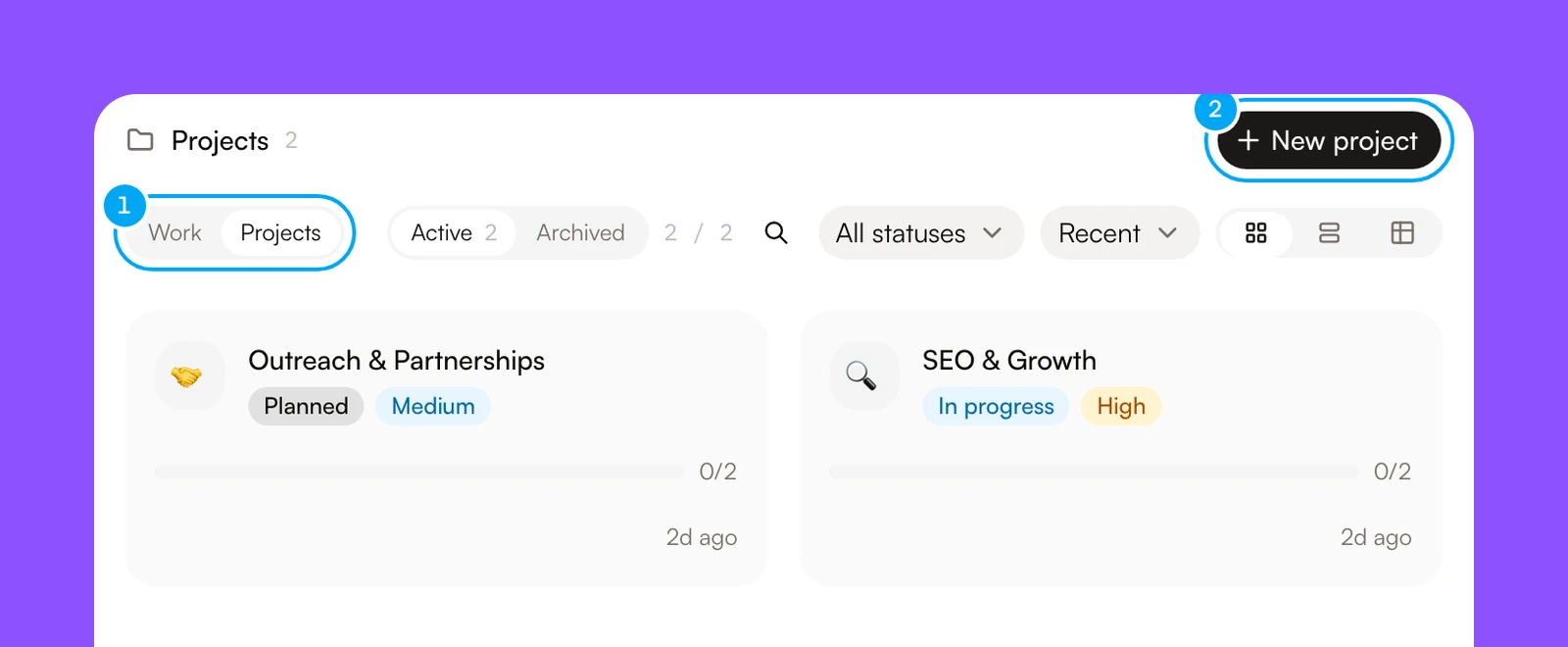
Open the Projects tab and start a project
- In Board, choose the Projects tab.
- Click New project.
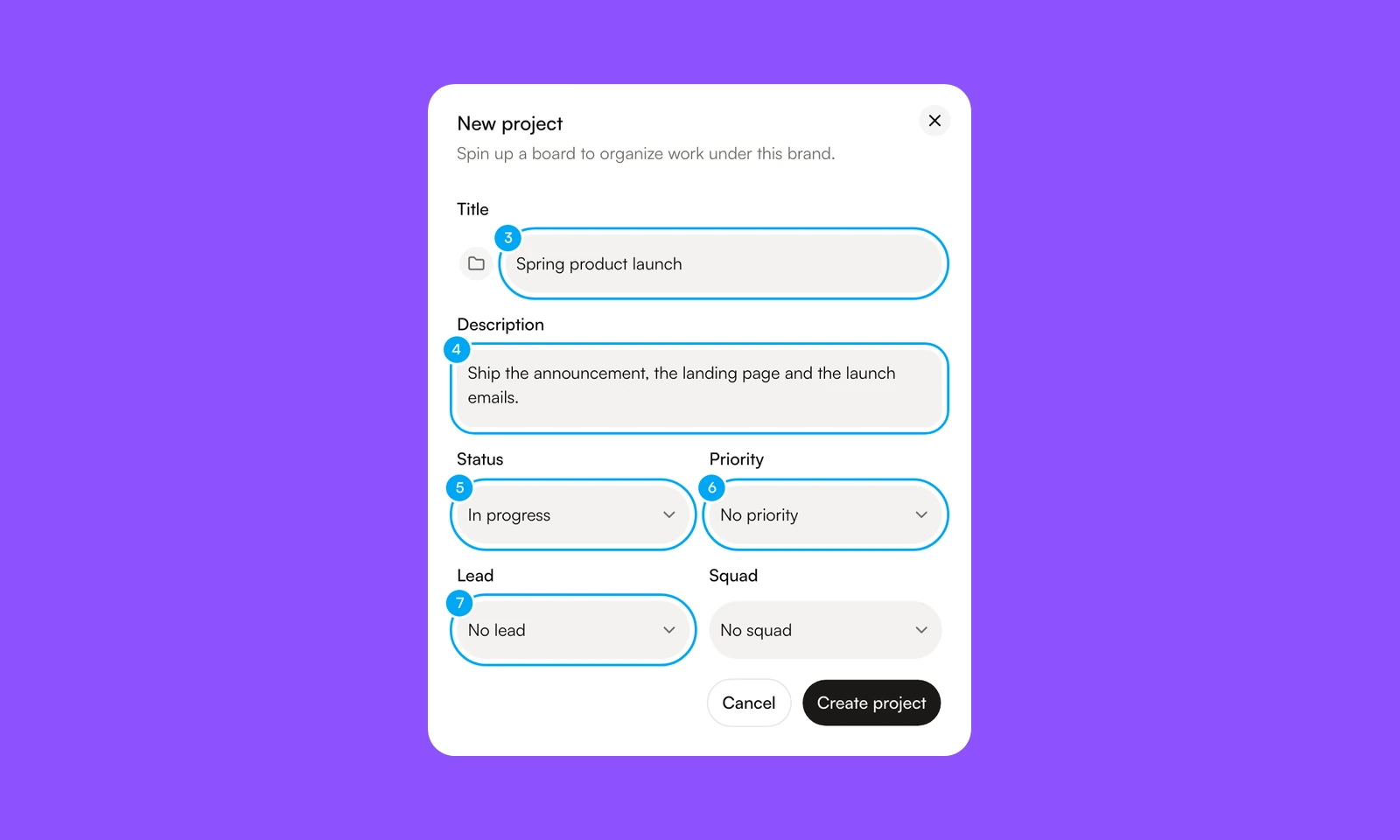
- In Title, enter a name for the initiative. Optional: click the icon button beside it to choose an icon and a color.
- In Description, say what the project is for.
- In Status, choose Planned, In progress, Paused, Completed, or Cancelled.
- In Priority, choose No priority, Urgent, High, Medium, or Low.
- Optional: in Lead, choose a member or an agent. In Squad, choose the squad that leads the project.
- Click Create project.
The project’s page opens on the Overview tab. The other tabs show the project’s tickets as a Board, List, Table, Calendar, or Gantt, and Activity shows what changed.
Overview shows the brief under About, then the sections Chats, Docs, Artifacts, and Agents. Below them it shows Progress, Open tickets by status, and Recent activity. View all opens the Activity tab. The Properties panel beside it changes the status, priority, lead, squad, Start date, and Target date, and shows when the project was created. Any member can set the lead of a project that has none. Only the current lead or a workspace admin can change an existing lead, and only an admin can replace an agent lead. Below the properties, Autopilots lists the workflows scoped to the project.
Work in a project home
The sections on Overview are the project home. Chats, docs, and the brief belong to the project, so an agent that answers in a project chat has the same context as the people who work on it.
- About holds the brief. Click Add a brief, or Edit, to change it. An agent can propose a change to the brief from a project chat. The proposal arrives as a draft card that shows Current and Proposed. The brief changes only when you click Apply. The draft cannot be applied if someone edited the brief after the agent read it.
- Chats lists your chats in the project, five at first, then Show more. Click the + button (New chat in this project) to open a new chat. The chat joins the project when you send its first message. Chat about this project in the page header does the same. You can also move a chat into a project from the sidebar. See Projects and Chats in the panel.
- Docs lists the docs that belong to the project. New doc in this project (the file button) starts a new doc. Add doc to this project (the + button) adds an existing doc to the project. A doc can belong to several projects, and a doc in a project leaves the brand docs. Remove from project on a row takes the doc out of this project only. A doc with no project left goes back to the brand docs. Agents that have Company knowledge turned off do not read these docs.
- Artifacts lists the artifacts that come from chats in the project. It shows only while Artifacts is turned on.
- Agents lists the agents of the project’s squad. It stays empty until the project has a squad.
The agent in a project chat receives the brief and can search the project’s docs. A chat in an archived project does not receive them.
Learnings
Agents that work on the project’s tickets add what they learn to the project’s learnings doc in Docs. The doc is named after the project, for example “Launch learnings”, and is created when the first learning is added. Once it exists, the Properties panel on the project page shows a Learnings link that opens it. People can edit the doc. A ticket reply that added learnings shows Added N learnings to and the doc’s name.
A project date is a calendar day. Everyone in the workspace sees the same day, whatever their time zone. When the project has a target date, Coming up shows it, and the Gantt tab marks it with a line. To change the title, icon, or brief, click Edit project (the settings button) in the page header.
What belongs in a project
A ticket joins a project when you set its Project property, or when you create it on the project’s Board tab. Tickets without a project stay on the workspace Board.
Projects and the workspace
Your workspace remains the home for shared agents, workflows, connections, and docs. Two things can be scoped to a project:
- Docs. In Add knowledge, Add to lets you choose Brand knowledge for the whole workspace, or one project. To put a doc in more projects, add it from each project’s Docs section.
- Workflows. In the builder, the Project setting assigns a workflow to a project, and its tickets go to that project’s board.
The Projects tab shows your projects as a grid, a list, or a table. Each project shows its status, ticket progress, and lead. The table adds a Target date column. The view you choose is remembered in this browser. Search by title, filter by status, and sort by Recent, Name, Progress, or Target date.
On a project’s page, click the star to pin the project. A pinned project appears in the Pinned group of the sidebar. Pins are saved to your account, so they follow you to other browsers and devices. Use the … menu to copy a link to the project.
Archive a project from the … menu on its page. An archived project is hidden from the list, and it stops feeding agent knowledge context. Its tickets and workflows keep their history, and you can restore it from the Archived view. Deleting an archived project is permanent: its docs move back to the workspace, its workflows lose their project link, and its tickets move to the workspace Board.
Use a project for useful organization, not as a required foundation for every automation.