An agent is a configurable AI teammate that turns approved work into research, drafts, updates, comments, and status changes.
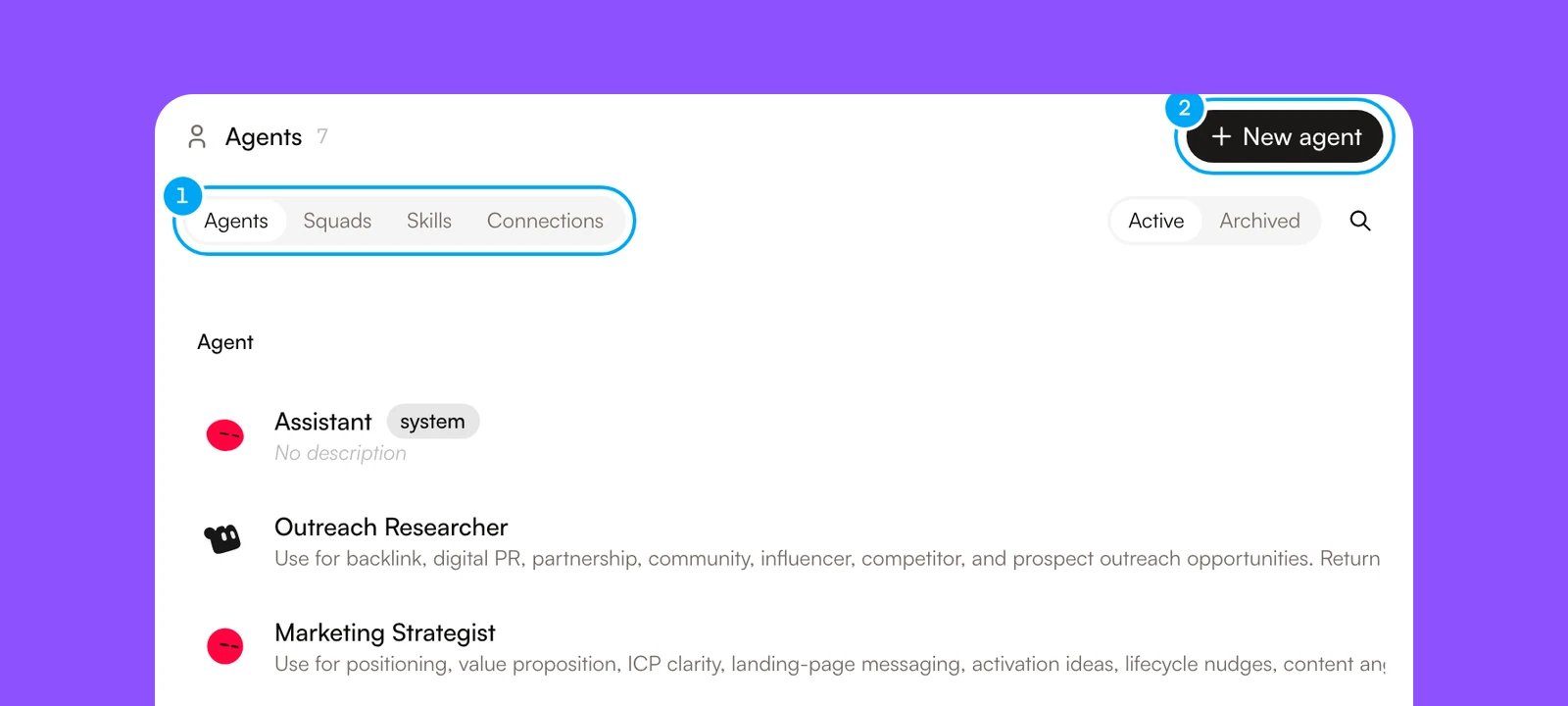
- The tabs. Connections is where you connect external accounts.
- New agent opens the agent builder.
The Active and Archived switch above the list separates agents you use from agents you archived. Agents marked system are built in and cannot be edited.
In the All view of the brand switcher, Agents lists the agents of every brand you can open. Each row shows its brand. The filter in the sidebar panel narrows the list. New agent asks which brand the agent belongs to, then opens that brand’s builder. Templates install into one brand, so open the brand’s own Agents page to use them.
Agent configuration
An agent combines several parts. In the builder each part is a block: Core, Docs, Skill, Connection, Toolkit, Guardrails, and Scorecard. On an existing agent’s Overview tab the same parts appear as sections.
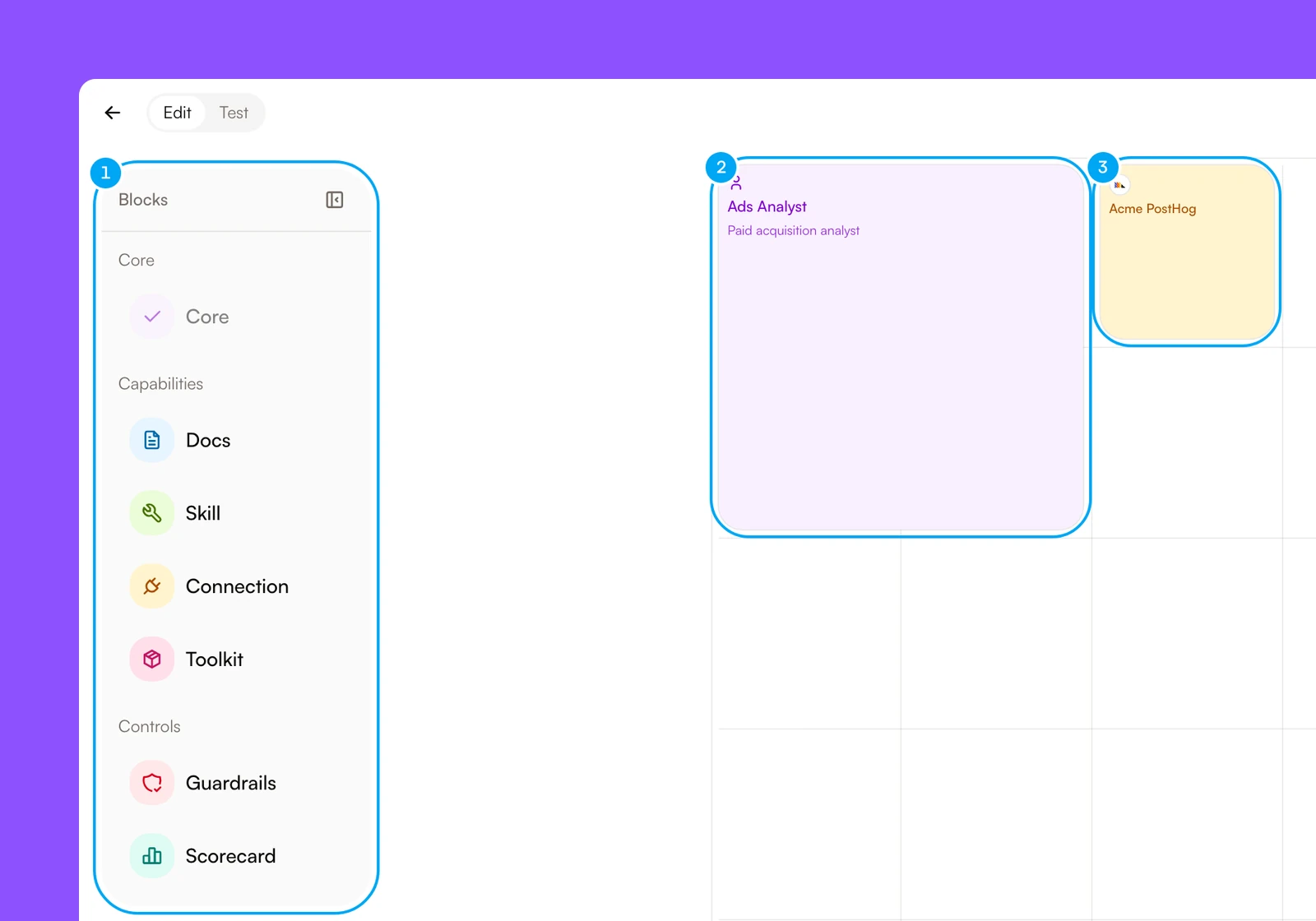
- The block list: Core, Docs, Skill, Connection, Toolkit, Guardrails, and Scorecard.
- The Core block, which shows the agent’s name and role.
- A Connection block, here for one connected account.
To create one, click New agent, fill in the blocks, and click Save. The agent’s page opens. Create and test an agent walks through the steps.
Skill history
Open a skill and click History, next to Editor, to see its saved versions, newest first. Each save that changes the skill adds a version, and a save that changes nothing adds none. AI Agent keeps up to 50 versions per skill and removes the oldest beyond that. Click a version to read its instructions and files. If you can edit the skill, Restore this version writes that version back after you confirm, and discards unsaved edits in the editor. The restore adds a new version, unless the skill already matches the version you restore. Earlier versions stay in the list.
The agent’s page
An agent’s page shows the chat on the left and the inspector on the right. See Chat for images, dictation, and editing a conversation. The inspector has six tabs: Overview, Memory, Tasks, Traces, Evals, and Activity. Overview holds the configuration. Edit opens the builder for an agent you can edit, with Edit and Test tabs.
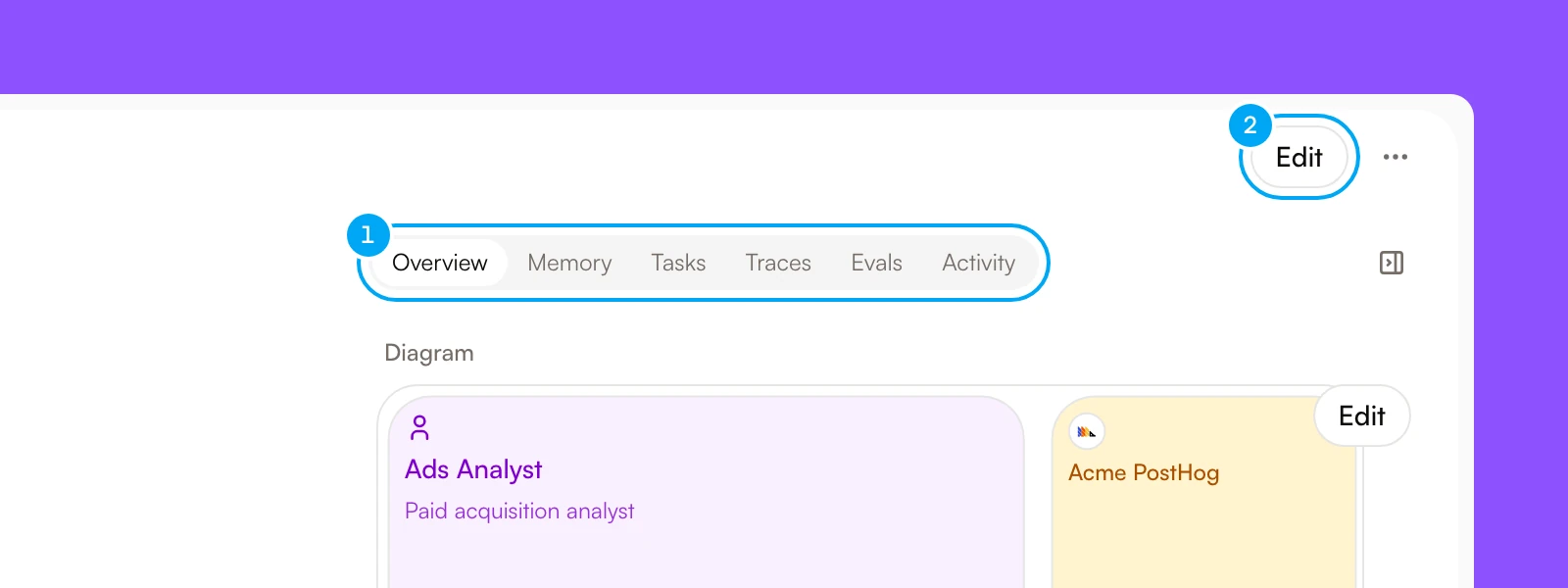
- The inspector tabs: Overview, Memory, Tasks, Traces, Evals, and Activity.
- Edit opens the builder.
Visibility decides who can use an agent. Shared means all project members can see and use it. Private means only you can.
The menu on each row of the list offers Duplicate, Transfer to…, and Archive. An archived agent can be restored, or deleted permanently from the Archived view.
Start from a template
You do not have to configure every agent from scratch. Agents shows a Start from a template row, and Browse all opens the full Templates catalog of ready-made agents for sales, marketing, engineering, design, product, operations, people, and personal work. The row is hidden when you have installed every template, and in the Archived view.
Each template page shows what the agent does, its skills and their instructions, its routines with their schedule, the apps it uses, and a diagram of how they fit together. Install asks you to confirm. The dialog says how many agents, skills, and paused routines it creates, and it lists the apps you have not connected yet. Routines start paused, so nothing runs until you turn one on.
The catalog is also public at /templates. Anyone can browse it without an account, and Install this agent carries the choice through sign-in and onboarding.
Squads
A squad groups agents into a reusable team. Agents in a squad delegate to their squadmates. Open the Squads tab and click New squad. In Name, enter a name, and in Description, say what the squad does. Click Create squad.
Open a squad to see its agents and the projects it leads. Add agent puts an agent in the squad, and the Edit and Archive buttons change or archive the squad. Each agent row shows a role badge: lead, member, or specialist. Agents you add from this page start as members. The Projects list shows the active projects that name this squad in their Squad property. See Projects to set one.
An archived squad moves to the Archived tab. Restore it there, or delete it permanently.
In the All view of the brand switcher, Squads lists the squads of every brand you can open. Each squad shows its brand. The filter in the sidebar panel narrows the list. New squad asks which brand the squad belongs to.
Agents and workflows
Agent
Decides how to perform a task within its instructions. Use an agent when the work benefits from judgment.
Workflow
Decides when tasks happen, in what sequence, and which outputs move forward. Use a workflow when the process needs repeatability.
Use them together when you need both judgment and repeatability. An Autopilot is the shortest way to give one agent a repeatable task. See Workflows and Autopilots.